Introduction
Recently, I built an C application that internally uses GStreamer. On the development machine, everything looked boring in the best possible way: the right libraries were installed, the plugins were available, and the pipeline started.
The annoying part came when the application had to be shipped as a private bundle. I did not want users to have to install GStreamer on their machines globally, and I also did not want to turn the project into a static-linking exercise. The plan was simple enough: build GStreamer once, link against it dynamically, bundle the matching runtime files, and do this for both Linux and Windows from an Ubuntu build machine.
As it turns out, that specific setup is not documented in one clean place. The official Cerbero deployment guide is a useful first start, but it stays light on the details that matter when you are cross-compiling from Linux to Windows and trying to make dynamic GStreamer loading predictable: pkg-config paths, runtime library lookup, plugin discovery, and where the DLLs or .so files actually need to live.
So this article will show the full workflow: build private GStreamer runtimes for Linux and Windows with Cerbero, compile a small example application against them, and bundle the libraries and plugins in a folder structure that does not depend on a system-wide GStreamer installation.
1) What we are building
The final directory layout will look roughly like this:
your-application/
├── gst-sdk/
├── gst-lib/
│   ├── x86_64-linux-gnu/
│   │   ├── bin/
│   │   └── lib/
│   └── x86_64-windows/
│       ├── bin/
│       └── lib/
├── src/
│   ├── main.c
│   └── your-module.c
├── your-application
└── your-application.exe
The important part is that GStreamer is not expected to be installed system-wide on the target machine. Instead, the application uses the bundled GStreamer runtime inside gst-lib.
On Linux, we will embed a relative rpath into the executable so it can find the bundled .so files next to itself. For GStreamer plugins, we will still set GST_PLUGIN_PATH, because plugins are discovered and loaded at runtime.
On Windows, there is no equivalent to Linux rpath in this setup. The usual approach is to prepend the bundled GStreamer bin directory to PATH, so the Windows loader can find the required .dll files. Again, GST_PLUGIN_PATH tells GStreamer where the bundled plugins live.
2) Prepare Ubuntu
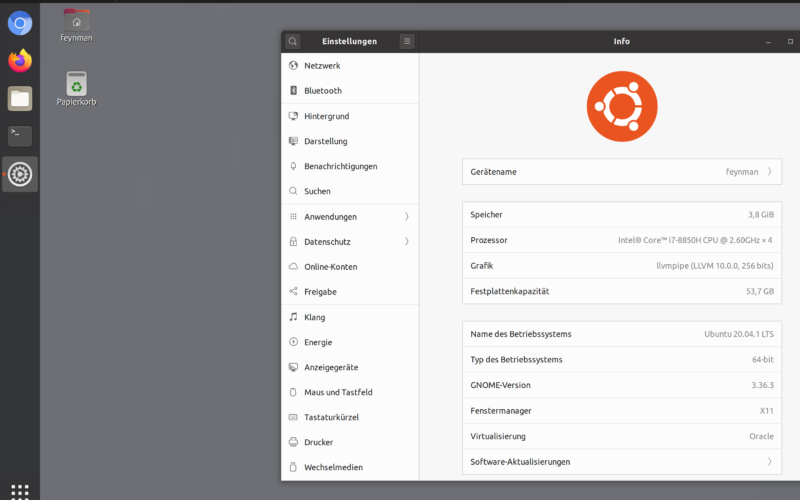
We will use Ubuntu 24.04 as the compiler host here. Other Debian-based distributions can work as well, but if you want the least amount of surprise, Ubuntu 24.04 is a sensible baseline.
One practical note before starting: do this on a local filesystem. Cerbero creates a lot of files, symlinks, build directories, and temporary artifacts. Building on a network share is a good way to collect weird permission errors that have nothing to do with GStreamer itself. Trust me, I’ve tried it.
Start by installing the basic build dependencies and the MinGW cross-compiler for Windows x86_64:
sudo -i
cd ~

dpkg --add-architecture i386
echo "check_certificate=off" >> ~/.wgetrc

apt-get -y update
apt-get -y upgrade
apt-get -y install ca-certificates wget curl python3 python3-venv git
apt-get -y install build-essential meson gcc-mingw-w64-x86-64-posix
The i386 architecture is added because parts of the Cerbero dependency chain may still expect 32-bit packages to be available. The gcc-mingw-w64-x86-64-posix package gives us the x86_64-w64-mingw32-gcc compiler we will use later for the Windows build.
The echo "check_certificate=off" >> ~/.wgetrc line disables certificate checks for wget. Normally this is not something I would recommend lightly, but I have run into cases where the Cerbero build crashed or failed halfway through because one of the downloaded dependencies triggered SSL or certificate validation errors. Since that kind of failure can cost quite a bit of build time before it appears, we keep this setting in place for this workflow.
3) Build the GStreamer SDK
Now create and enter your application directory. In this article we will use ~/your-application as the project root, but adjust that to your actual name.
mkdir -p ~/your-application
cd ~/your-application
Next, clone Cerbero into a local directory called gst-sdk and check out the GStreamer version you want to build:
git clone https://gitlab.freedesktop.org/gstreamer/cerbero gst-sdk
cd gst-sdk

git checkout 1.28.0
The exact version is up to you, but keep one rule in mind: use the same GStreamer SDK version for your application, your bundled runtime, and any custom GStreamer plugins you ship with it. Mixing versions can work right until it doesn’t.
3.1) Build for Linux
For the native Linux build, bootstrap Cerbero first and then build the GStreamer modules you need. Here we go with base, good and bad:
./cerbero-uninstalled bootstrap
./cerbero-uninstalled build gstreamer-1.0
./cerbero-uninstalled build gst-plugins-base
./cerbero-uninstalled build gst-plugins-good
./cerbero-uninstalled build gst-plugins-bad
This will take a while. Cerbero is not just downloading a few headers; it is building a complete, relocatable GStreamer stack with all its dependencies.
If your application depends on additional plugin families such as gst-plugins-ugly or gst-libav, build those here as well. The private runtime can only load plugins that actually exist inside the output you created.
3.2) Build for Windows
The Windows build uses the same Cerbero checkout, but with the MinGW cross-compilation configuration:
./cerbero-uninstalled -c config/cross-win64.cbc bootstrap
./cerbero-uninstalled -c config/cross-win64.cbc build gstreamer-1.0
./cerbero-uninstalled -c config/cross-win64.cbc build gst-plugins-base
./cerbero-uninstalled -c config/cross-win64.cbc build gst-plugins-good
./cerbero-uninstalled -c config/cross-win64.cbc build gst-plugins-bad
After this finishes, you should have two build outputs below gst-sdk/build/dist: one for Linux and one for Windows. Those outputs are what we will point pkg-config at when compiling the actual application.
4) Build your application against your own GStreamer
Now we get to the part that is usually under-documented: building your own code against the private GStreamer build without accidentally linking against the system GStreamer installation.
Go back to your application root first:
cd ~/your-applicationThe examples below compiles a simple C application directly with gcc. If your project uses Meson, CMake, Make, or something else, the idea is the same: make sure the build system receives the same PKG_CONFIG_PATH, PKG_CONFIG_SYSROOT_DIR, and library path settings before it tries to resolve GStreamer.
4.1) Build the Linux binary
Set the paths for the native Linux build:
export SDK=$(pwd)/gst-sdk/build/dist/linux_x86_64
export PKG_CONFIG_PATH=$SDK/lib/x86_64-linux-gnu/pkgconfig
export PKG_CONFIG_SYSROOT_DIR=$SDK
export LIBRARY_PATH=$SDK/lib/x86_64-linux-gnu
At this point, pkg-config should resolve GStreamer from the private build rather than from the host system. You can quickly check that with:
pkg-config --modversion gstreamer-1.0
pkg-config --libs gstreamer-1.0
Now copy the matching GStreamer runtime into the bundle directory. I called that gst-lib here:
mkdir -p gst-lib/x86_64-linux-gnu/bin
mkdir -p gst-lib/x86_64-linux-gnu/lib

cp -a $SDK/bin/* gst-lib/x86_64-linux-gnu/bin/
cp -a $SDK/lib/x86_64-linux-gnu/* gst-lib/x86_64-linux-gnu/lib/
This looks a bit blunt, but it makes the deployment story simple: the application and its exact GStreamer runtime travel together. No guessing which distribution package happens to be installed on the target machine.
Now compile your application:
gcc -o your-application \
    src/main.c \
    src/your-module.c \
    $(pkg-config --cflags --libs gstreamer-1.0) \
    -Wl,-rpath-link,$LIBRARY_PATH \
    -Wl,-rpath,'$ORIGIN/gst-lib/x86_64-linux-gnu/lib'
Replace src/main.c and src/your-module.c with your actual source files. If your application uses additional GStreamer libraries, add them to the pkg-config calls. For example, an application using appsink or appsrc will usually also need gstreamer-app-1.0.
The two linker flags at the end are the interesting part here.
-Wl,-rpath-link,$LIBRARY_PATH helps the linker resolve dependencies from the private build while the binary is being built. -Wl,-rpath,'$ORIGIN/gst-lib/x86_64-linux-gnu/lib' embeds a runtime search path into the executable. $ORIGIN means “the directory where this executable is located”, which makes the bundle relocatable.
4.2) Build the Windows binary
For the Windows build, switch the paths to the MinGW output:
export SDK=$(pwd)/gst-sdk/build/dist/mingw_x86_64
export PKG_CONFIG_PATH=$SDK/lib/pkgconfig
export PKG_CONFIG_SYSROOT_DIR=$SDK
export LIBRARY_PATH=$SDK/lib
Again, copy the matching runtime files into the bundle directory:
mkdir -p gst-lib/x86_64-windows/bin
mkdir -p gst-lib/x86_64-windows/lib

cp -a $SDK/bin/* gst-lib/x86_64-windows/bin/
cp -a $SDK/lib/* gst-lib/x86_64-windows/lib/
Now compile the Windows executable with MinGW:
x86_64-w64-mingw32-gcc -o your-application.exe \
    src/main.c \
    src/your-module.c \
    $(pkg-config --cflags --libs gstreamer-1.0)
The Windows binary is still dynamically linked. The difference is that Windows will find the required DLLs through PATH at runtime rather than through an embedded rpath.
5) Bundle custom GStreamer plugins
If your application only uses stock GStreamer elements, you can skip this section. If you have custom GStreamer plugins however, this is where many bundles quietly break.
GStreamer plugins are discovered at runtime. They do not need to be linked directly into your-application, but the plugin artifact must be copied into the bundled GStreamer plugin directory. The plugin also needs to be built against the same GStreamer version and target architecture as the application that will load it.
For Linux, copy your plugin .so file into the bundled plugin directory:
cp -a libgstyourplugin.so gst-lib/x86_64-linux-gnu/lib/gstreamer-1.0/For Windows, copy the matching .dll file into the Windows plugin directory:
cp -a libgstyourplugin.dll gst-lib/x86_64-windows/lib/gstreamer-1.0/Adjust the filenames to whatever your plugin build actually emits. The important part is the destination: it must end up in the gstreamer-1.0 plugin directory that GST_PLUGIN_PATH will point to later.
6) Run your application
Before transferring the bundle to another machine, one small hint: archive the entire gst-lib directory instead of copying individual subdirectories by hand. This preserves symlinks and keeps the bin and lib trees together, avoiding potentially broken library or plugin discovery on the target machine.
6.1) Run on Linux
From the application directory, set the runtime paths and start the binary:
export LD_LIBRARY_PATH=$(pwd)/gst-lib/x86_64-linux-gnu/lib/${LD_LIBRARY_PATH:+:$LD_LIBRARY_PATH}
export GST_PLUGIN_PATH=$(pwd)/gst-lib/x86_64-linux-gnu/lib/gstreamer-1.0

./your-application
The embedded rpath should already help the executable find the bundled GStreamer libraries, but setting LD_LIBRARY_PATH makes the runtime environment explicit and also helps with libraries loaded indirectly through plugins.
GST_PLUGIN_PATH is not optional if you rely on bundled plugins. Without it, GStreamer will search its default plugin locations, which is exactly what we are trying to avoid.
6.2) Run on Windows
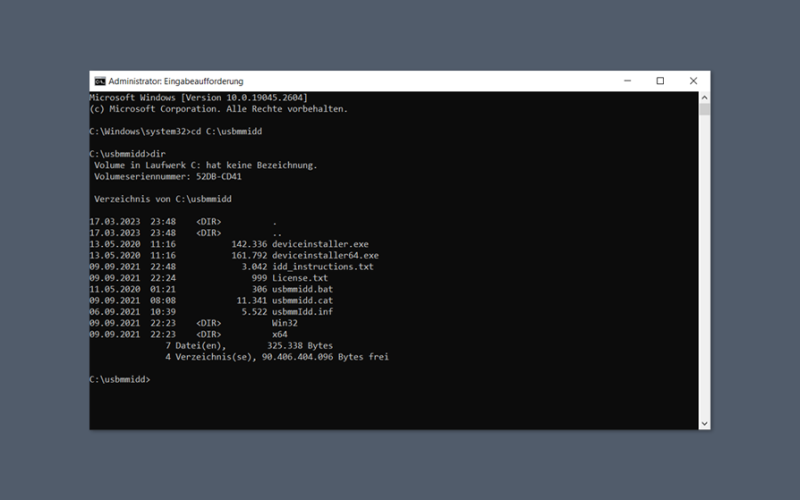
On Windows, open a Command Prompt in the application directory and set the runtime paths like this:
set "PATH=%CD%\gst-lib\x86_64-windows\bin;%PATH%"
set "GST_PLUGIN_PATH=%CD%\gst-lib\x86_64-windows\lib\gstreamer-1.0"

.\your-application.exe
The PATH update makes sure Windows resolves GStreamer DLLs from your bundle before looking elsewhere. GST_PLUGIN_PATH does the same thing for plugin discovery.
If the application starts on your build machine but not on a clean Windows system, missing DLL discovery is usually the first thing to check. In most cases either the PATH was not set correctly, or the bundle was copied without the complete bin directory.
7) Wrapping up
That is the basic workflow: build GStreamer with Cerbero, compile your application against the private build output, copy the matching runtime into gst-lib, and make the library and plugin paths explicit at startup.
The important part is consistency. The application, bundled libraries, and plugins all come from the same GStreamer build, so deployment no longer depends on whichever version happens to be installed on the target system. At the same time, we avoid turning the project into a static-linking science project.
From here, the next step is usually to hide the runtime environment setup behind a small launcher script on Linux and a .bat, shortcut, or installer entry on Windows. After that, the user starts the application normally, while GStreamer quietly loads from the private bundle in the background.